VISUAL INTEGRATION

Start with the space.
Understand the object.

Connect overview, area and equipment views. Show where states come from, when they were updated and who can see them. Build the interface around a viewing task.

BEFORE YOU START

Clarify the conditions.
Bring the material you have.

For spatial location, equipment inspection and business views. Define viewing depth around users, model assets and available data.

  1. 01Viewers and their tasks
  2. 02Spatial assets and object inventory
  3. 03Field sources, freshness and access

01 / FOLLOW THE VIEWING TASK

Where it is. What it says. What supports it.

Find the supply fan in Building C’s second-floor public area, then check whether the available information explains its operating state.

01 / OVERVIEW

Building C · public services

The overview locates the building and target floor. It does not yet explain device operation.

Building C public services

03
02Target floor
01
Product demo
View time

Click or press Enter to enter. Use the same control again to return. The area stays in context while its object is open.

Enter the floor-two public areaReturn to building overview · close area
02 / AREA

Building C → floor-two public area

Move from a floor to an area and its equipment, narrowing the view step by step.

Area ID
Building C floor-two public area
Viewing scope
Floor-two public-area supply air; excludes other floors and buildings
View supply fan C2-V01Return to floor-two area · close object
03 / OBJECT & EVIDENCE

Supply fan C2-V01

C2-V01

Review states and records from an equipment object to understand each information source.

Stale record

Operating state: RUNNING

Source
Building management system / C2-V01 run state
Record time
2026-09-30 08:20 +08:00

The operating record was updated 40 minutes ago. Review its timestamp and related information.

Device data owner: check collection time, update interval and the latest valid record.
Not connected

Supply temperature: no reading

Source
Not provided
Record time
Not provided

Temperature is unavailable. Continue with equipment state and location.

Integration and equipment owners: confirm the actual point, unit, read interface and authorization before deciding to display it.

Access restricted

Maintenance record: content unavailable

Source
Maintenance records / supply fan C2-V01
Record time
Not provided

Maintenance records are unavailable. Continue through the equipment information.

Business authorization owner: define viewers, record scope and necessary fields, then ask the record custodian for evidence.

Move from location to equipment, then review states and related records by update time.

Prepare the gaps with the integration guide ↗

SPACE AND INFORMATION

02 / SPACE, ALARMS AND WORK ORDERS

Space is the entry.
Evidence needs its own reading.

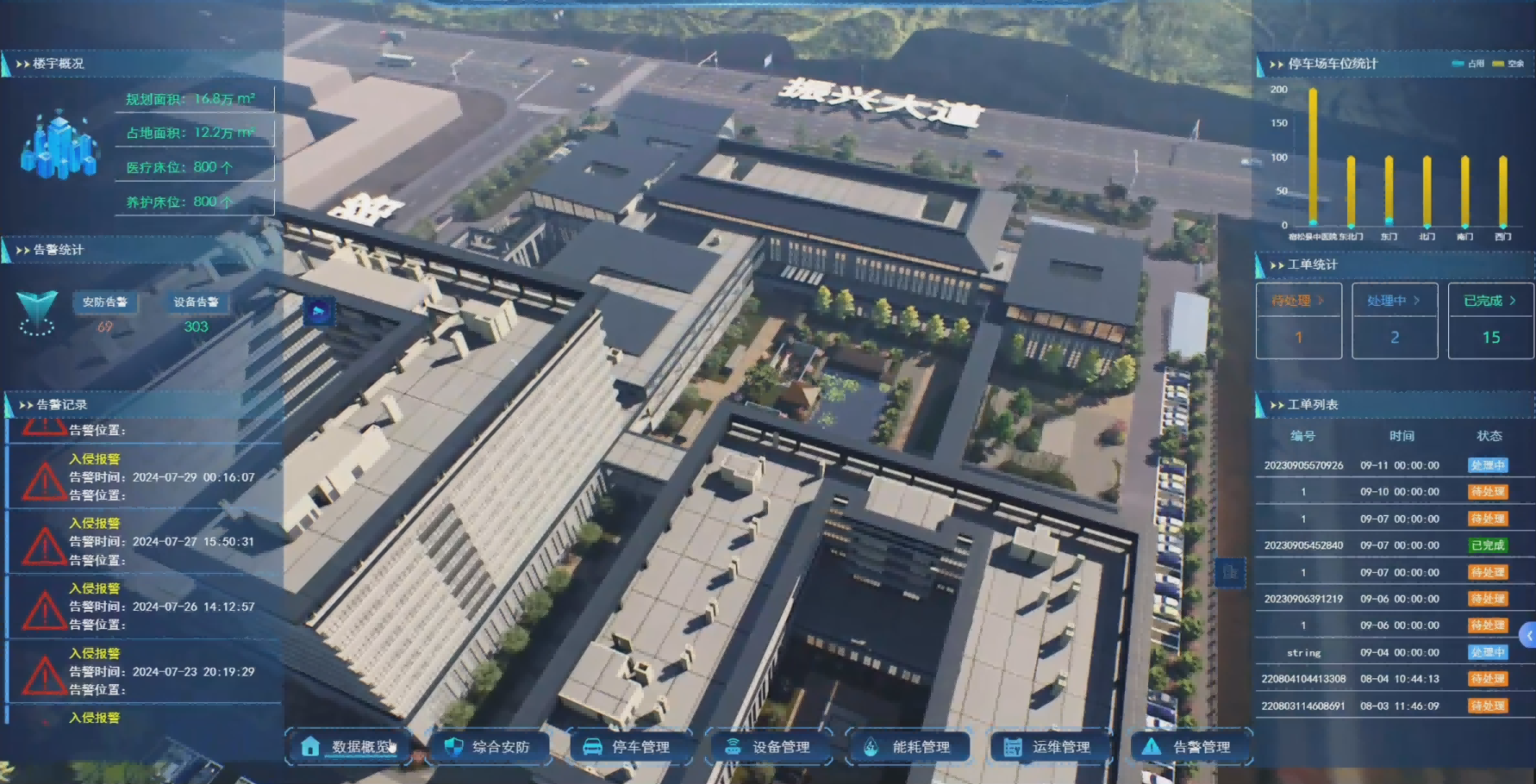
Locate objects through building space and review alarms and work orders on either side, checking location, events and work records separately.

P.C.I building-scene interface: hospital buildings in the center, alarm totals and records left, work totals and records rightView full interface
P.C.I building-scene interfaceThe spatial view and business panels provide different information entries. Original interface in Chinese; explanations below refer to the same source.
Left: alarm totals and recordsLeft: alarm totals and records

Move from totals to alarm types and time records. Complete location and equipment identifiers are needed to relate an event to a spatial object.

Swipe horizontally to inspect fields, or focus the region and use arrow keys.

Check position in the full source
Left: alarm totals and records
Alarm and work-order fields
Right: work totals and recordsRight: work totals and records

Work-order statistics group pending, active and completed work. Use identifiers, dates and states to trace work records.

Swipe horizontally to inspect fields, or focus the region and use arrow keys.

Check position in the full source
Right: work totals and records
Alarm and work-order fields

Space, alarms and work orders offer different entries for moving from an overview to specific work.

03 / DISCUSS PRODUCTS BY TASK

Define interface layers
and spatial relationships.

PsCanvas

Compose a readable interface

PsCanvas organizes interfaces through 2D / 2.5D configuration, an adaptive canvas, chart controls, POI points and field binding. Define the added information at each page and drill-down level.

View capabilities and conditions ↗
P.C.I

Place devices in spatial context

P.C.I organizes security, fire and energy information within3Dbuilding space, giving cross-system information spatial context.

View capabilities and conditions ↗

Confirm product selection, interface compatibility and combinations around viewing tasks and existing systems.

NEXT STEP

Bring a specific question.
Discuss the delivery scope.

Connect overview, area and equipment views. Show where states come from, when they were updated and who can see them. Build the interface around a viewing task.

Discuss project scope

Product interface

Product interface reference

Switch to actual size and scroll horizontally for details.